Monitor Eye Strain: How to Choose a Screen That's Better for You and the Planet
Plenty of people rub tired eyes after a long day at the screen, but the usual reflex, buying a bigger or newer monitor, rarely fixes it. Viewing distance, glare, flicker, and how often you look away matter far more than panel size. What helps: TÜV-certified flicker control, hardware low blue light, matte anti-glare coatings, and ambient light sensors, paired with the right desk setup.
Building any of that hardware carries a manufacturing footprint most shoppers never see, one that gets locked in at the factory and stays fixed for the monitor's whole life. A refurbed monitor gives you that same eye comfort tech on your desk without adding a new footprint to the planet's ledger, and you can browse the full range of refurbished monitors to see what fits your setup.
What Really Causes Monitor Eye Strain (and What Doesn't)
Digital eye strain comes from several things stacking up at once: sustained close focus, a blink rate that drops during concentrated screen work, awkward workstation ergonomics, and more than four to five hours of daily screen time. A systematic review looking specifically at blue-light-blocking filters found no evidence that they prevent digital eye strain, despite how often they're marketed as the fix.
Screen size isn't the variable either. A bigger display can help if it lets you use larger, sharper text at a comfortable distance, or hurt if it sits too close, too tall, or too wide for your desk and forces you to keep turning your head to scan the edges. Resolution matters more directly: a study published in Human Factors found that low-resolution displays measurably increase visual search time, fixation duration, and self-reported fatigue compared with high-resolution displays, because the eyes work harder to resolve blurred detail. Separate research on accommodative response found that low resolution can cause the eye to under-focus, while very high resolution can cause some nearsighted people to over-focus, so getting the display properly scaled matters as much as the resolution number itself.
Screen Technology That Reduces Monitor Eye Strain
TÜV Rheinland grades eye comfort on a star scale instead of a single vague label, which makes it a useful shortcut when comparing monitors. A four-star rating asks for hardware-level blue light reduction, strictly flicker-free backlighting, and 100Hz refresh; the top five-star tier raises that to at least 120Hz and adds colour accuracy plus controls that adapt brightness and colour temperature to the room. Both tiers are verified against the hardware, not self-reported by the manufacturer.
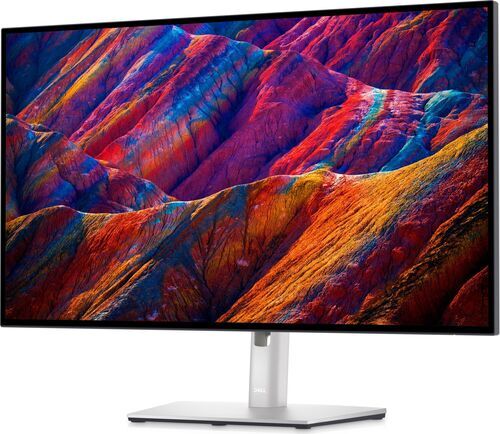
Flicker itself is worth checking directly. Backlights that rely on pulse-width modulation can flicker at a rate some people don't consciously notice but that still triggers headaches or eye strain, so a true flicker-free panel using DC dimming at the brightness you'll use day to day matters more than the brand on the box. Dell's ComfortView Plus is one hardware approach: it reduces blue light at the panel level instead of tinting the whole screen orange, the way software filters do. The Dell UltraSharp U2723QE shows what that UltraSharp line looks like in practice, a 27-inch 4K IPS panel with a USB-C hub that daisy-chains a second monitor over a single cable, alongside the same matte, ergonomic-stand fundamentals covered below.
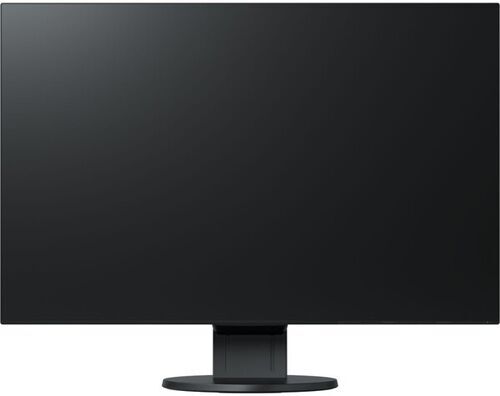
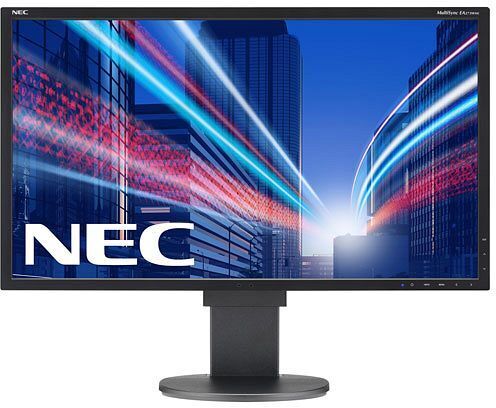
A matte, anti-glare coating is just as important and gets far less marketing attention. EIZO built its reputation on exactly this: the EIZO FlexScan EV2456 pairs a matte IPS panel with narrow bezels, so reflections from windows or overhead lighting don't force an awkward angle just to see the screen clearly. Ambient light sensors round this out. BenQ's Brightness Intelligence reads ambient light and colour temperature through a sensor built into the bottom bezel and adjusts the screen continuously, the same idea behind NEC's Human Sensor line. The NEC MultiSync EA273WMI carries that ergonomic-office pedigree into a 27-inch IPS panel.
No panel technology is universally eye-safe. Some people find OLED's brightness modulation uncomfortable; others notice nothing at all. Try before you commit if you're sensitive to flicker or headaches, or buy somewhere with an easy return policy.
Refresh Rate, Contrast, and Sharpness: The Numbers That Matter Most
Office monitors have mostly run at 60Hz for years, but that's starting to change. Scrolling at 60Hz creates a subtle stutter that forces your eyes to keep refocusing on moving text; 100Hz to 120Hz smooths that motion out and cuts the eye-tracking fatigue that comes with a full day of scrolling documents, code, or a browser. The Dell UltraSharp U2724DE is a refurbished example that pairs a 120Hz IPS panel with a Thunderbolt 4 dock.
Contrast matters for a different reason. IPS Black panels roughly double standard IPS contrast, to around 2000:1, which makes a real difference if you spend much of the day in a dark-mode interface: text stays crisp against a properly dark background instead of looking washed out, without the burn-in risk that comes with OLED.
Sharpness comes down to pixel density. Aim for roughly 110 to 140 pixels per inch for comfortable desktop text. Current 27-inch 4K panels typically land around 163 PPI, and 28-inch 3:2 panels built for code and documents push close to 164 PPI, both well above that target. A 4K panel only delivers on that promise if the operating system scales the interface up, typically to 125 to 150 percent, so text stays a readable size while the extra pixels sharpen the edges. Skip the scaling step on a large 4K screen like the Dell UltraSharp U3219Q and the text ends up too small to read comfortably, no matter how sharp it looks.
Ergonomic Monitors Worth a Look
Desk Depth, Distance, and Posture: Getting the Ergonomic Monitor Setup Right
Monitor size can't be separated from how deep your desk is. A 27-inch monitor is the easy fit for a standard 60 to 80cm deep desk, at a viewing distance of roughly 70 to 80cm. Step up to 32 inches and you need 85 to 100cm of distance to avoid the same problem a shallow desk causes: tech neck, the soreness that comes from craning forward to track the edges of a screen sitting too close.
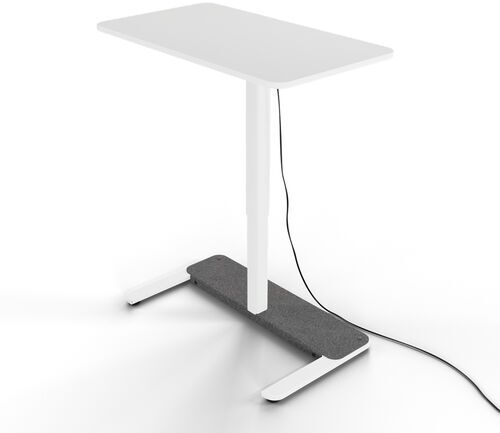
Position matters as much as size. The top edge of the screen should sit at or slightly below eye level, not above it. A monitor propped too high on a fixed-height stand forces your head back and tires your neck and upper back over a full day. This is where a proper stand or monitor arm earns its keep, often more than a jump to a pricier panel would. The Dell MSA20 Single Monitor Arm gets the screen to the right height and distance regardless of what desk it's bolted to, and a Yaasa Desk One electrically height-adjustable desk gives you the depth and height range to make that positioning work in the first place.
The American Optometric Association recommends starting at least 50cm, about 20 inches, from a large display and moving further back as the screen grows, using OS scaling or a larger font instead of leaning in to compensate. If a 32-inch panel is on your list, check your desk measures at least 85cm deep before you buy, not after.
A few habits help alongside the hardware: the 20-20-20 rule, every 20 minutes, look at something 20 feet away for 20 seconds, a soft warm light behind the monitor to soften the contrast between a bright screen and a dark room, and dropping brightness by 20 to 30 percent from the factory default to match your room instead of overpowering it.
The Environmental Impact of Making a Monitor
Roughly 70 to 80 percent of a monitor's total carbon footprint is generated during manufacturing, before it ever reaches a desk. Panel fabrication is the single biggest reason why. A life-cycle assessment of a Dell 27-inch QHD monitor found the panel and panel-related parts responsible for 58 percent of manufacturing climate impact, with mechanical components adding 25 percent, the mainboard 6 percent, the power supply board 5 percent, and packaging 2 percent, out of a total cradle-to-grave footprint of 210kg CO2-equivalent. A separate EIZO assessment found the LCD panel alone accounts for 68.5 percent of raw-material impact and 43.7 percent of the monitor's entire lifecycle impact. Step up from a 27-inch to a 32-inch panel and you're fabricating roughly 40 percent more glass and backlight area, which is a large part of why bigger screens carry a meaningfully higher manufacturing burden even before the bulkier stand and packaging are counted. A 75-inch commercial display like the Samsung OM75R sits at the far end of that same curve: several times the glass area of a desktop monitor, and a useful reminder that footprint scales with screen size well beyond the desk.
Two specific processes drive most of that cost. The clean room a panel is built in has to hold an exact temperature, humidity, and particulate level around the clock, and keeping that environment running is energy-intensive enough that display fabrication alone is estimated at roughly 1 to 2 percent of total global manufacturing energy. On top of that, plasma etching and chamber cleaning rely on fluorinated gases, SF6 and NF3, and SF6 in particular is thousands of times more potent a greenhouse gas than CO2 despite the comparatively small volumes used, making it the single largest contributor to a panel's warming impact. Separately, the transparent electrodes in both LCD and OLED panels need indium tin oxide alongside mined gold, silver, and copper, and that mining and refining drives most of a monitor's terrestrial toxicity and water eutrophication, the nutrient pollution that starves waterways of oxygen.
The backlight technology changes the balance without eliminating it. Mini-LED adds thousands of individual LEDs and denser backlight electronics, offset somewhat by a long functional lifespan of 50,000 to 100,000 hours. OLED removes the backlight stack entirely but is difficult to recycle and more prone to burn-in, which shortens its typical lifespan to 30,000 to 60,000 hours and often forces an earlier replacement than a comparable LCD.
The conclusion holds regardless of panel type: since manufacturing carries most of the footprint, the most sustainable monitor is the one you don't have to replace.

Why a Refurbished Monitor Is the Healthier, Greener Choice
That manufacturing footprint from the last section, the clean-room energy, the SF6 and NF3 process gases, the mined indium tin oxide, gets locked in the moment a panel is built, whether the monitor is sold once or five times afterward. Buying a monitor refurbished doesn't add a new instance of that footprint to the count. It extends the life of a panel that's already been made, instead of asking the supply chain to fabricate another one from scratch.
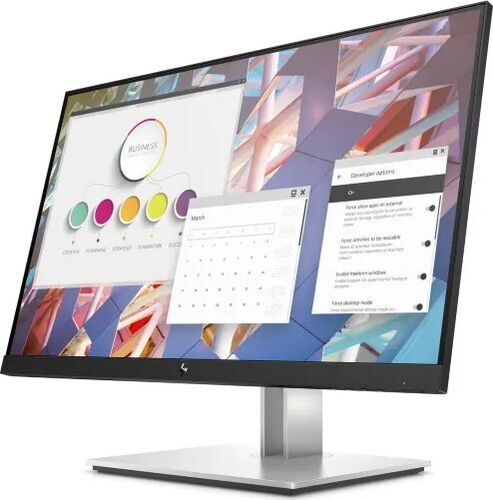
None of the eye comfort tech gets lost along the way, either. A refurbished monitor is still a genuine IPS panel, still carries its matte anti-glare coating, still sits on the same ergonomic stand it shipped with. Higher-end options extend that further: the Samsung Odyssey Neo G6 G65B, with its 240Hz curved panel, and the Samsung Odyssey G5 G50D, running at 180Hz, both put high-refresh comfort tech within reach at a lower price than buying either new. Budget picks benefit just as much: the HP E24 G4 keeps things simple, a 24-inch IPS panel on an adjustable stand, at a refurbished price well under what the same specification costs new.
Every refurbed monitor is tested, cleaned, and covered by a minimum warranty before it ships, so refurbished doesn't mean second-best. It means the manufacturing cost was already paid before you ever placed an order, and keeping the monitor in use for longer is the single biggest lever for lowering its environmental impact.
Monitor Eye Strain FAQs
Does a bigger monitor cause more eye strain?
Not on its own. Size only matters in combination with viewing distance and desk depth: a 27-inch monitor at 70 to 80cm or a 32-inch monitor at 85 to 100cm both work fine. A large screen crammed onto a shallow desk is what causes strain, not the size itself.
Do blue light filters or blue light glasses help?
Not by themselves. There's no controlled evidence that blue-light blocking prevents digital eye strain. Hardware low blue light modes preserve colour better than an orange-tinted software filter, but neither replaces good ergonomics and regular breaks.
What's the ideal viewing distance for my monitor?
About 70 to 80cm for a 27-inch monitor and 85 to 100cm for a 32-inch one, with the top edge of the screen at or slightly below eye level.
Is a refurbished monitor still flicker-free and TÜV-certified if the original model was?
Yes. The certified hardware, the backlight driver and panel, doesn't change during refurbishment. The process tests and cleans the unit; it doesn't strip out the components that earned the certification.
Ready for a Healthier, More Sustainable Monitor?
Better for your eyes, better for the planet, without paying full price for either. Browse refurbed's current range of refurbished monitors and find the one that fits your desk and your budget.

Sign up for our newsletter for the first time and save 15€!
Never miss an offer again.
Information about the use of personal data can be found in our Privacy policy.
Get the refurbed app
For iOS and Android


Confirm sign-up
Click the link in our confirmation e-mail to receive your voucher. It will be applicable to purchases from 200€.
- © Refurbed Marketplace GmbH
- Accessibility
- T&C
- Privacy Policy
- Imprint
- Legal Notices
- European Data Act
- Cookie Policy